Customer Order
WooCommerce storefront experience
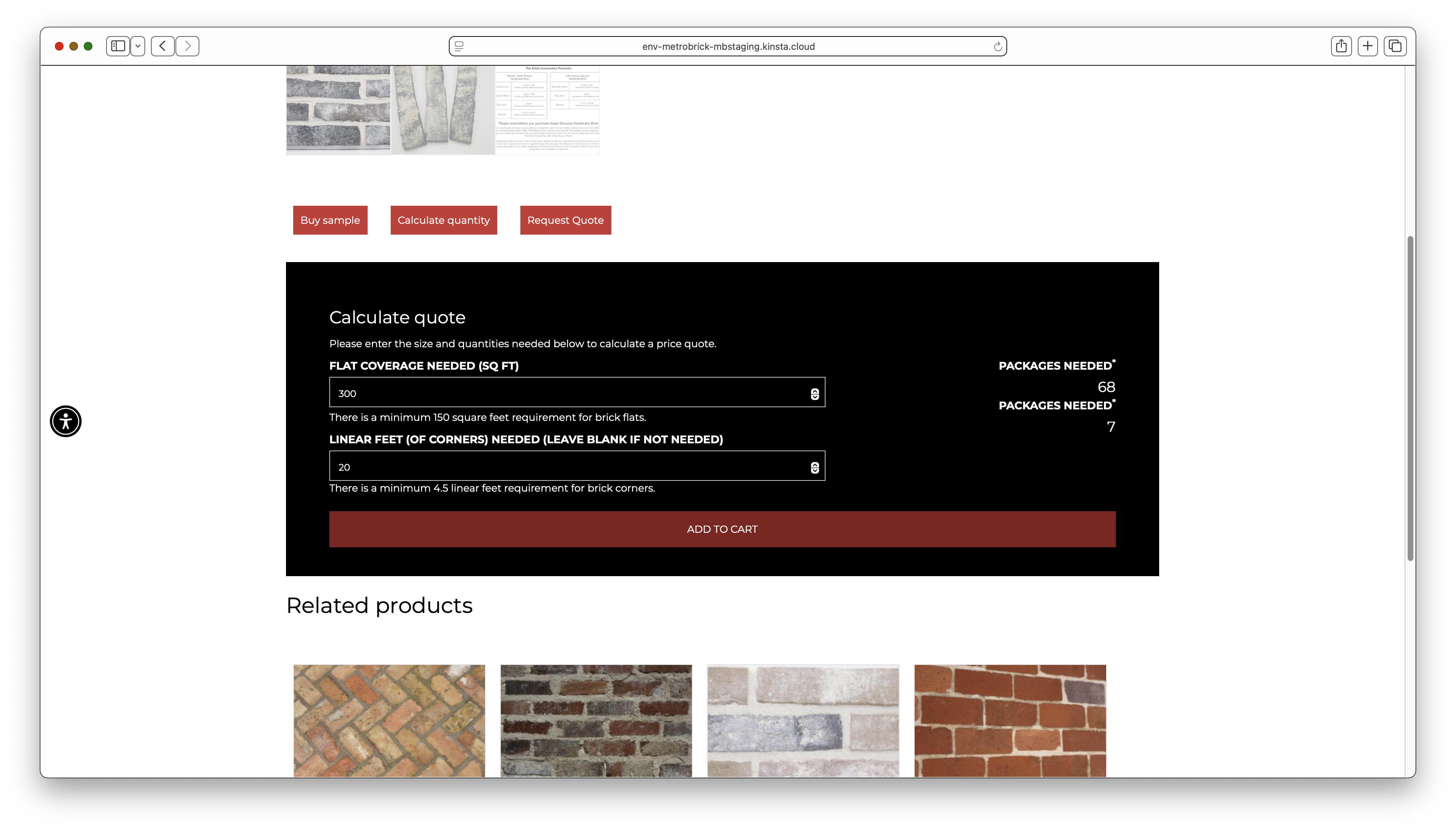
Product Calculator
Customer enters square footage needed and linear feet of corners. Calculator determines packages required for both flat bricks and corner pieces.
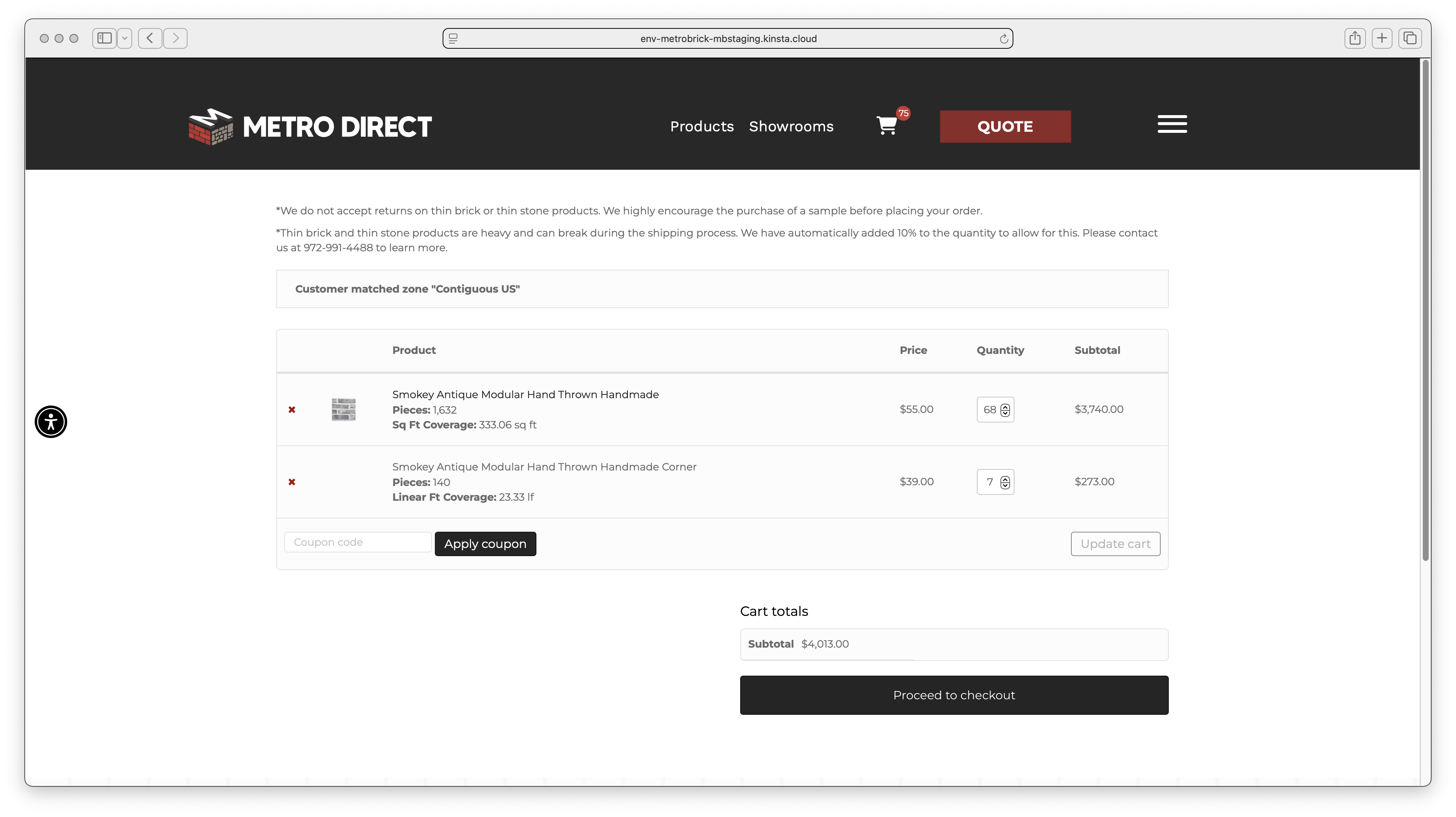
Shopping Cart
Cart displays products with 10% breakage buffer automatically added. Shows piece count, coverage, and subtotal. Customer can apply coupons.
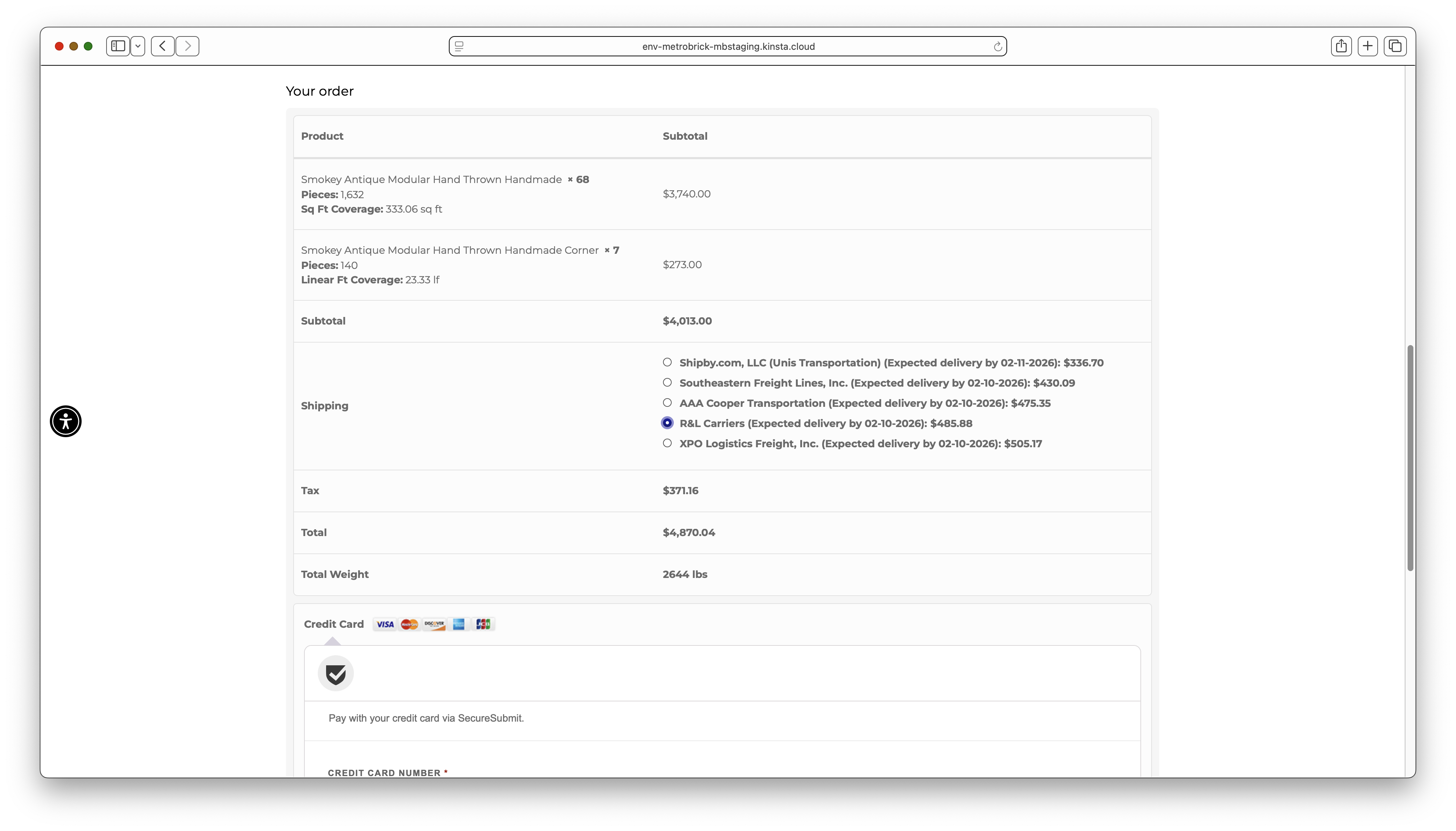
Checkout with Freight Options
Customer selects from multiple LTL freight carriers with real-time quotes. Shows expected delivery dates and total weight (2644 lbs in example).
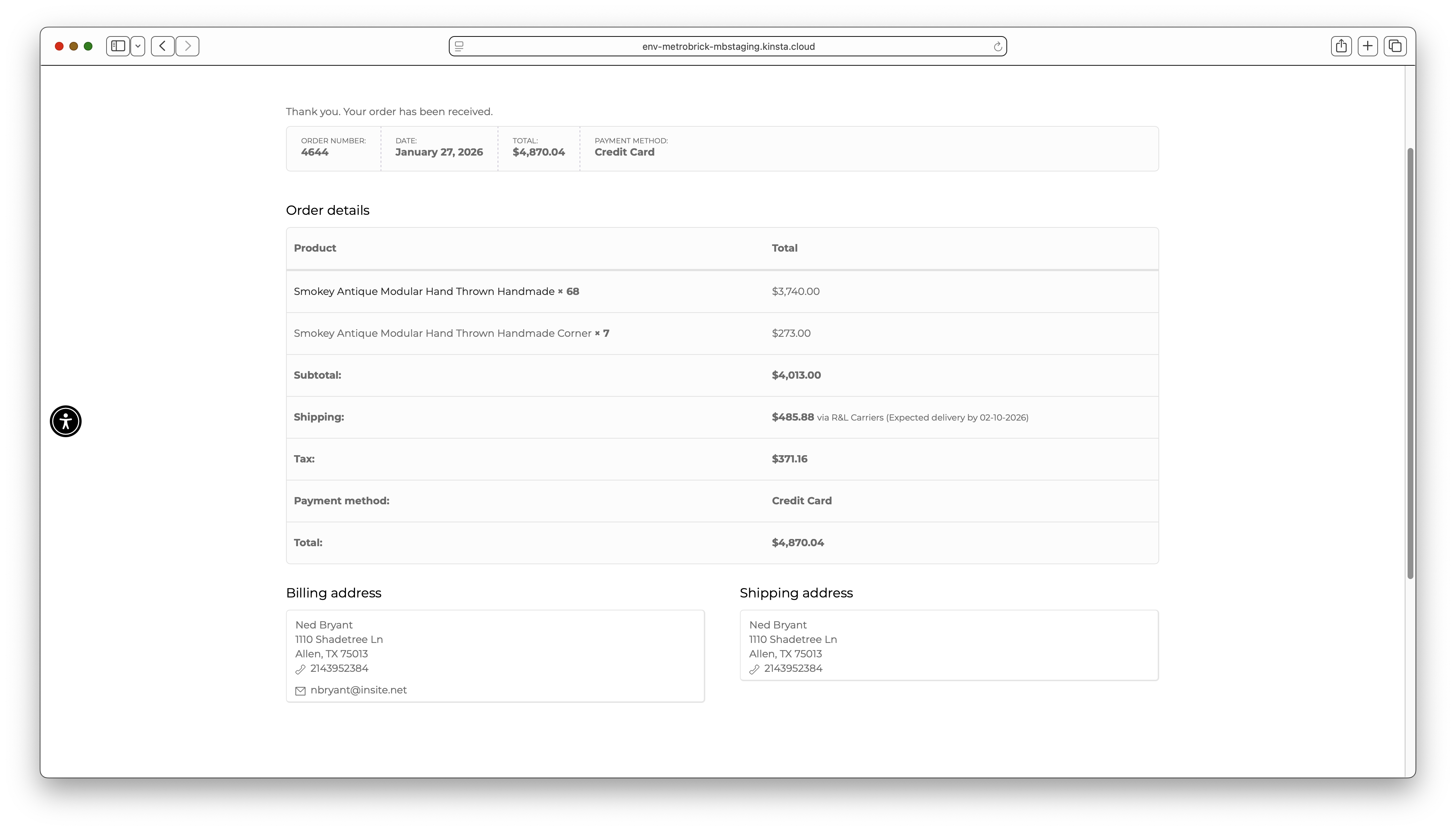
Order Confirmation
Customer sees order summary with order number, products, shipping carrier selection, tax, and total. Billing and shipping addresses confirmed.
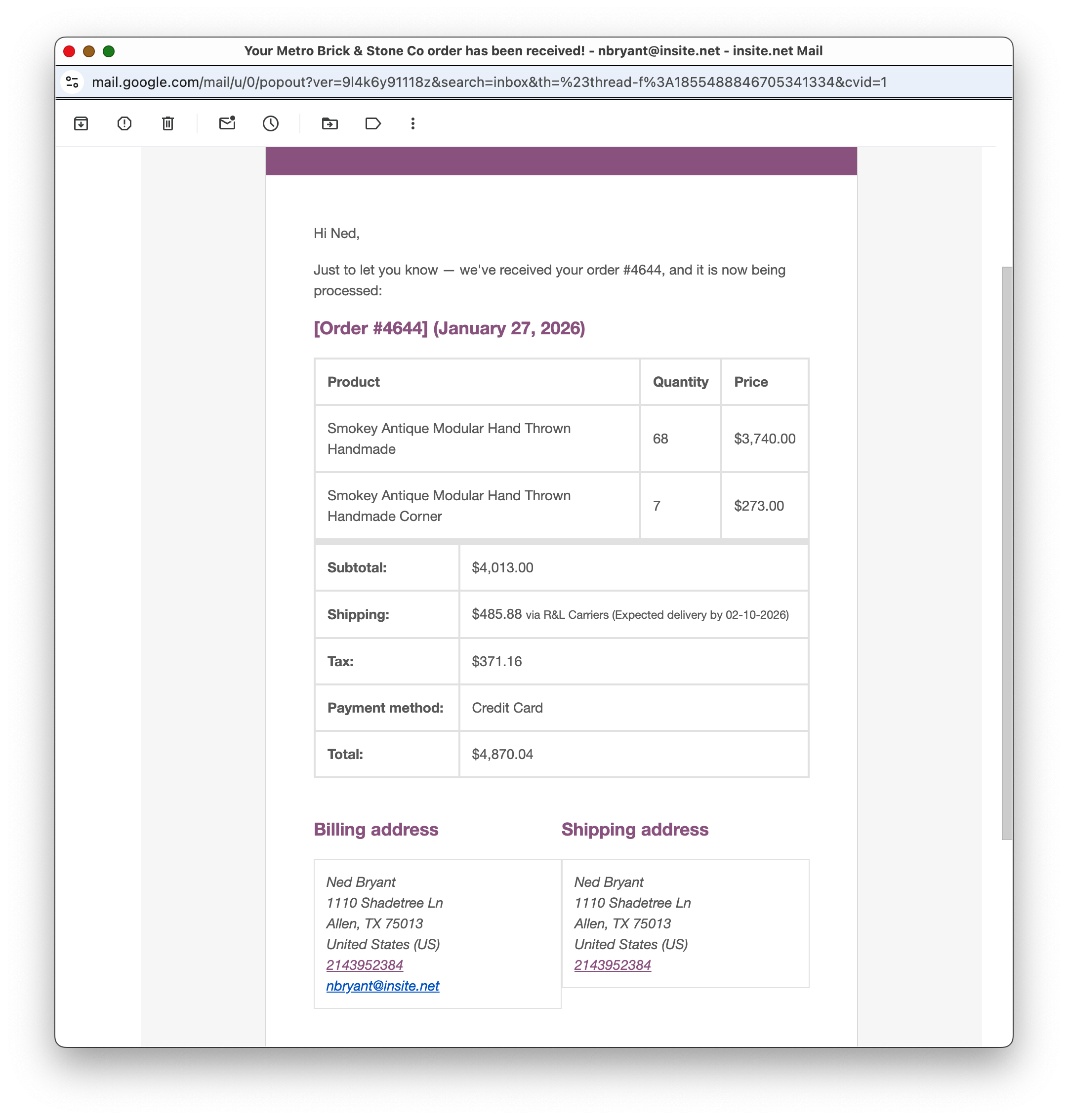
Customer Confirmation Email
Automated email sent to customer confirming order receipt. Includes order details, quantities, pricing, and expected delivery information.
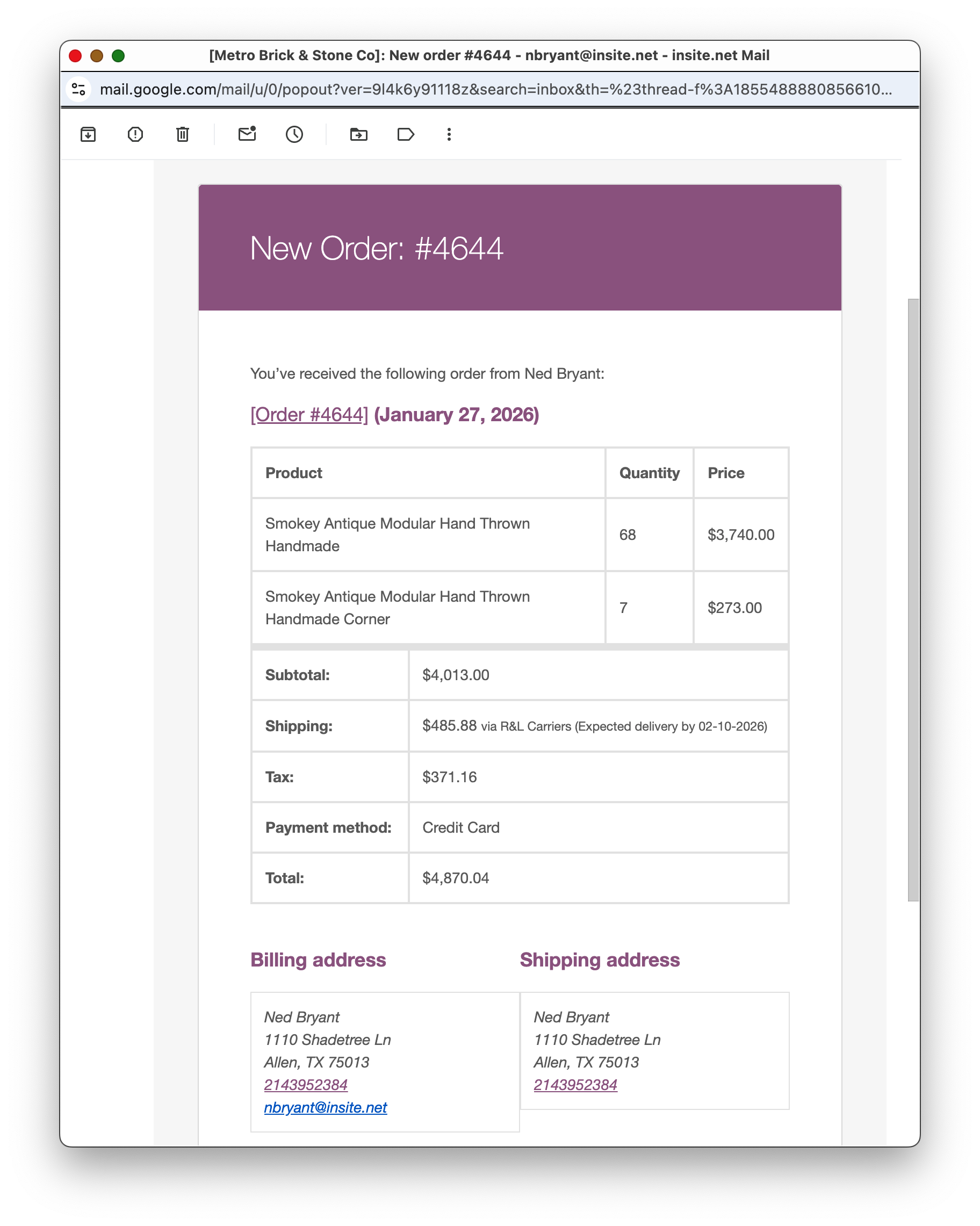
Store Order Notification
Metro Brick receives email notification of new order. Contains complete order details for internal processing and fulfillment team.
Order Management
WooCommerce admin dashboard
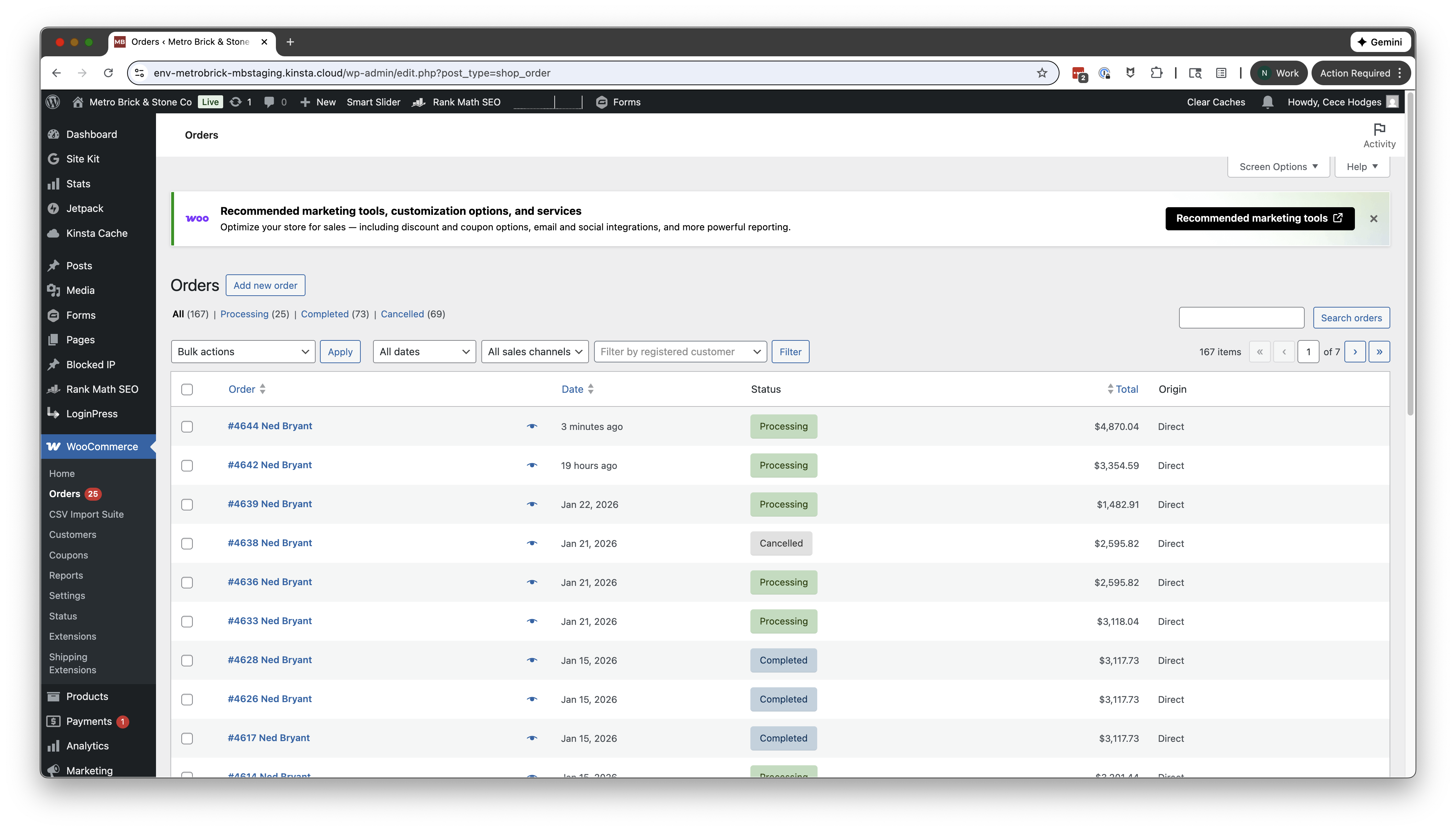
WooCommerce Orders List
Admin view of all orders showing status (Processing, Completed, Cancelled), customer name, date, total, and origin. New orders appear with "Processing" status.
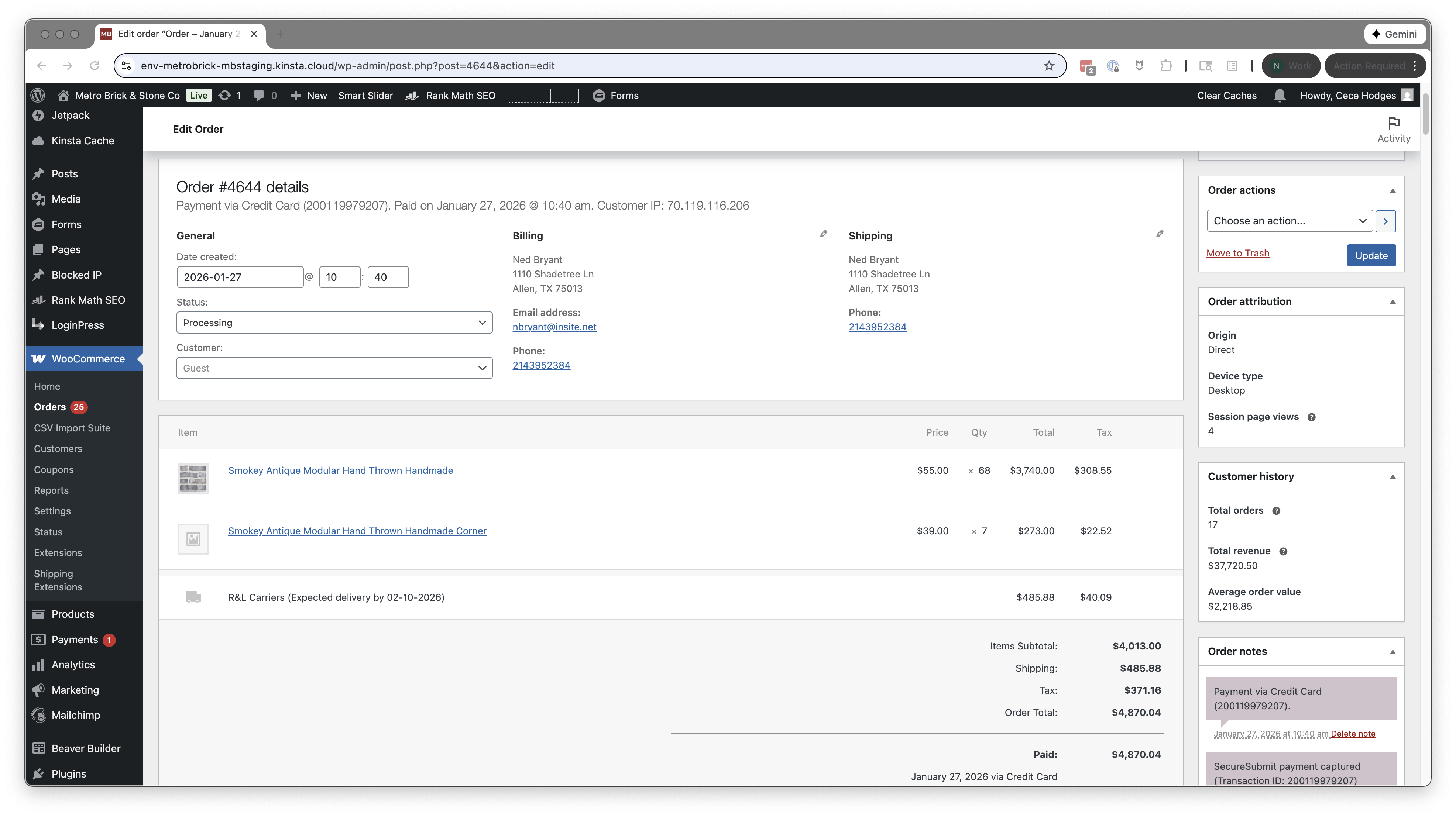
Order Detail View
Complete order information including line items, pricing, tax, shipping carrier, customer addresses, payment details, and order notes with timestamps.
Freight Processing
FreightDesk Online LTL shipment management

FreightDesk Orders List
Orders synced from WooCommerce marketplace. Shows order numbers, values, and source. Orders can be filtered by status (Awaiting, Fulfilled, etc.).

Import Orders
Import specific orders from WooCommerce by order number or date range. Select platform and marketplace, then import to begin shipment processing.
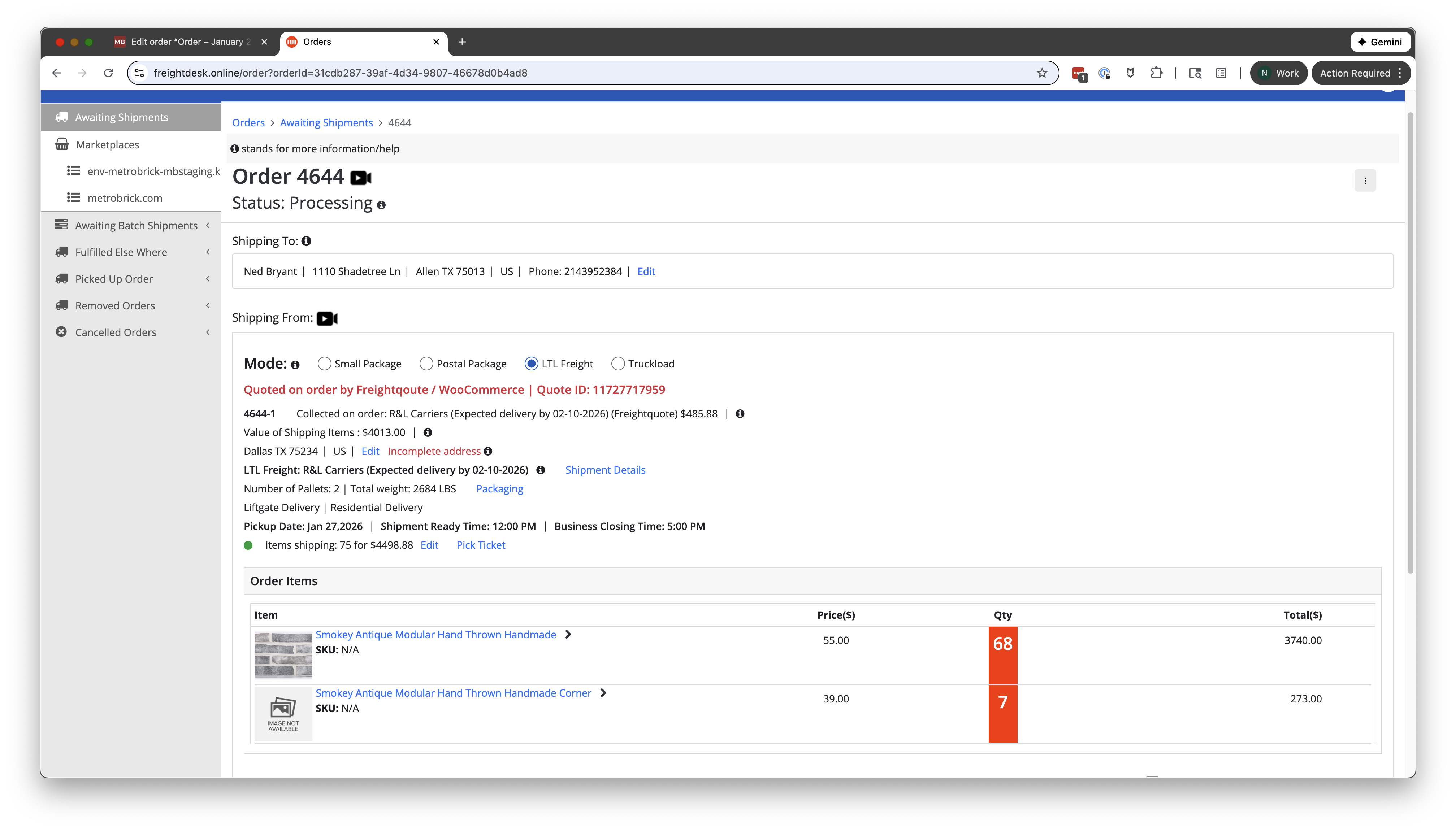
Order Detail in FreightDesk
Complete shipment information: ship-to address, freight mode (LTL), carrier quote details, pickup date/time, pallet count, weight, and line items.
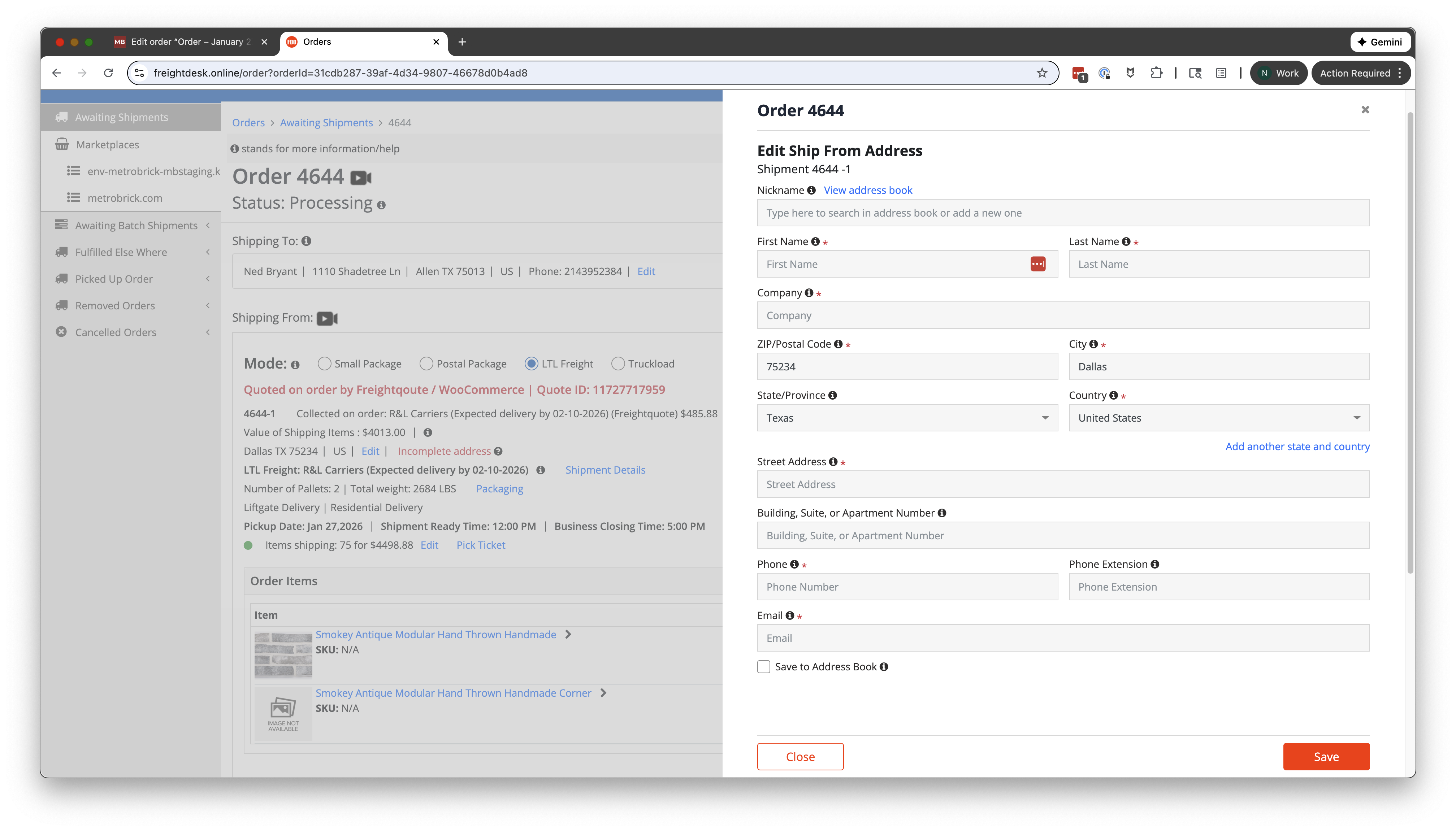
Edit Ship-From Address
Configure the shipping origin address. Can select from address book or enter new address with company name, contact info, and location details.
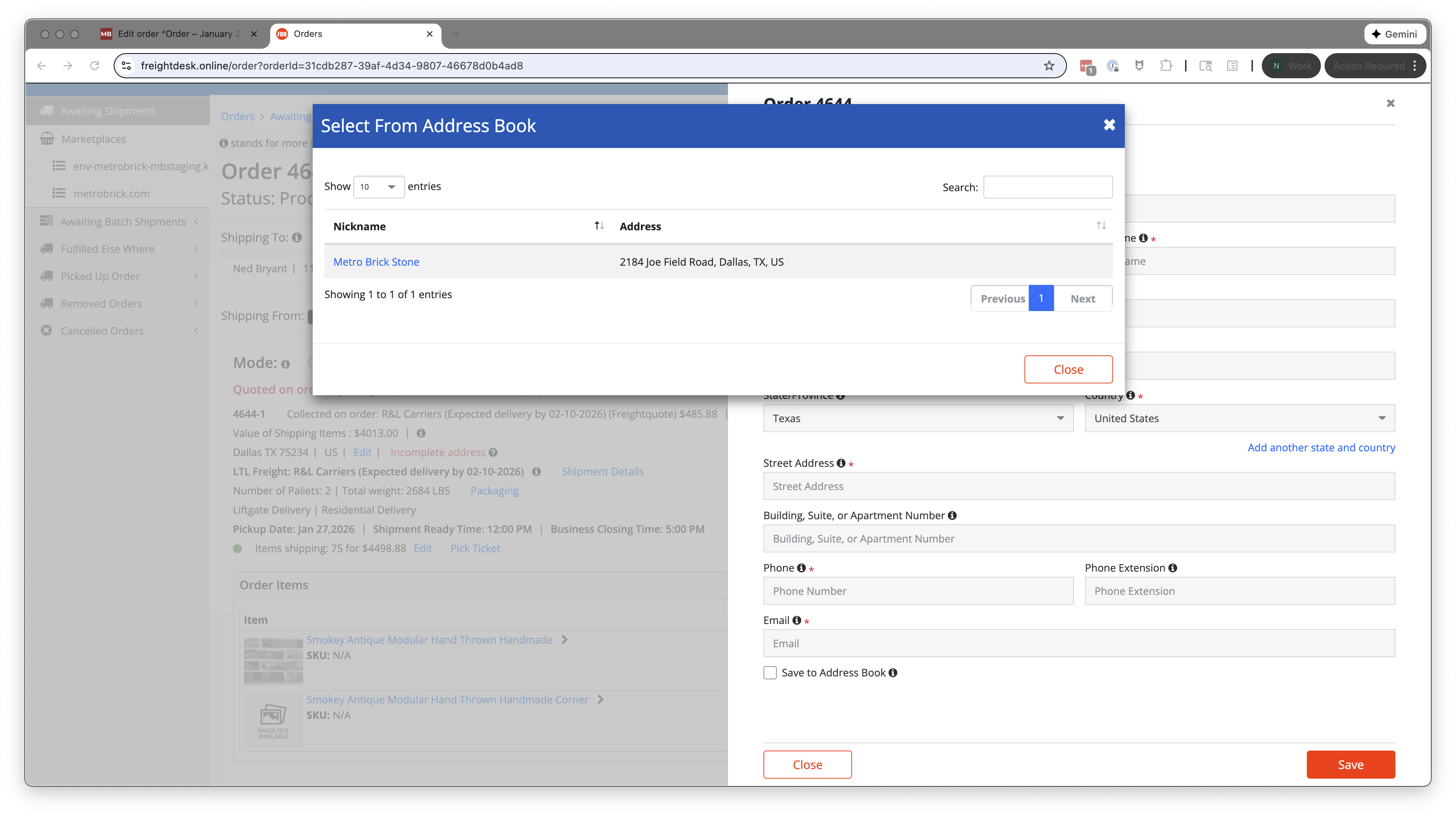
Address Book Selection
Quick select from saved addresses. Metro Brick Stone warehouse address (2184 Joe Field Road, Dallas, TX) can be selected for ship-from location.

Shipment Details Configuration
Configure BOL preferences, handling units, pallet dimensions, weight settings, and commodities. Set NMFC codes and freight class for accurate shipping.
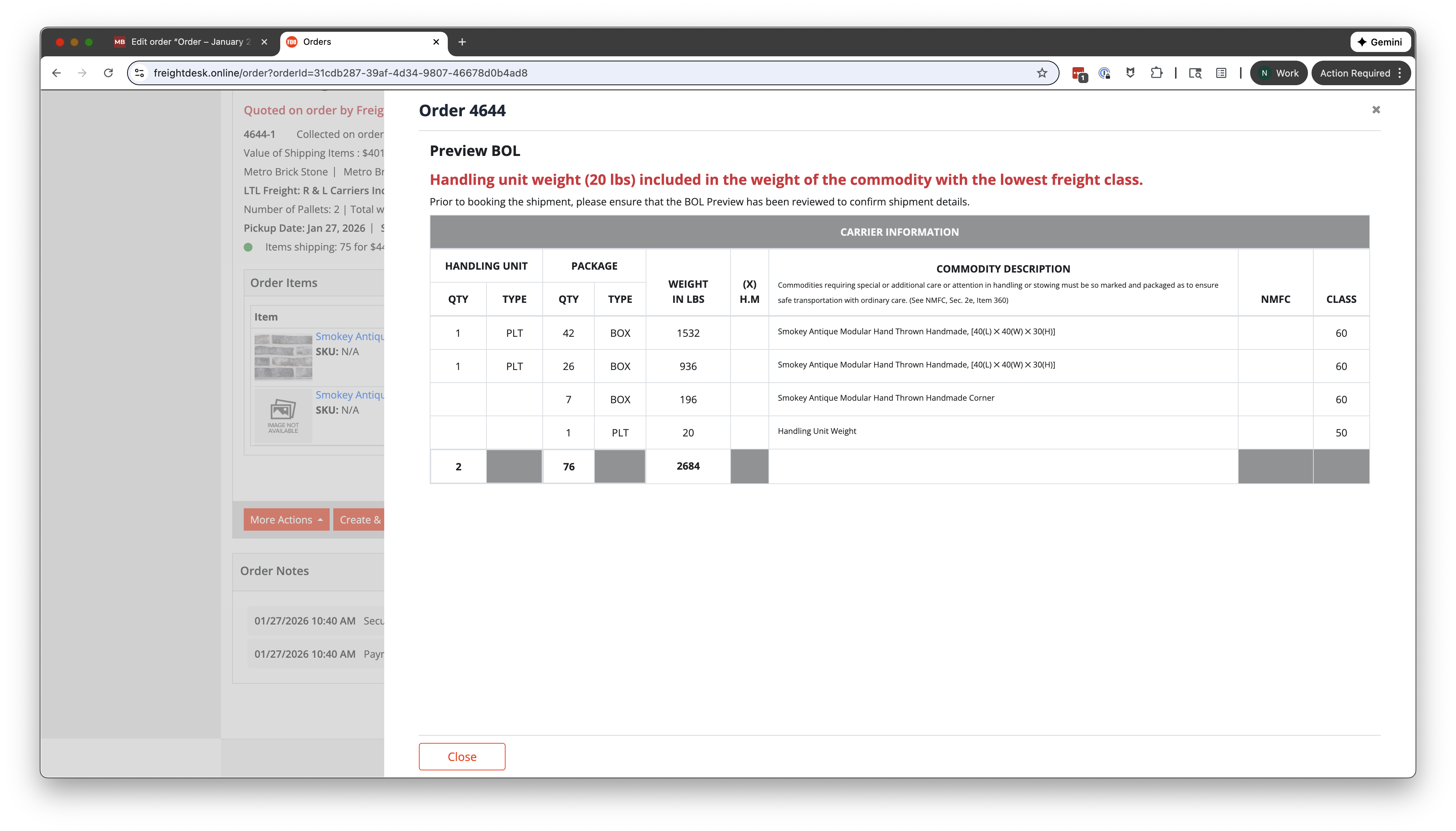
Preview Bill of Lading
Review BOL before creation. Shows handling units, package types, weights, commodity descriptions, and NMFC/freight class. Includes handling unit weight notice.
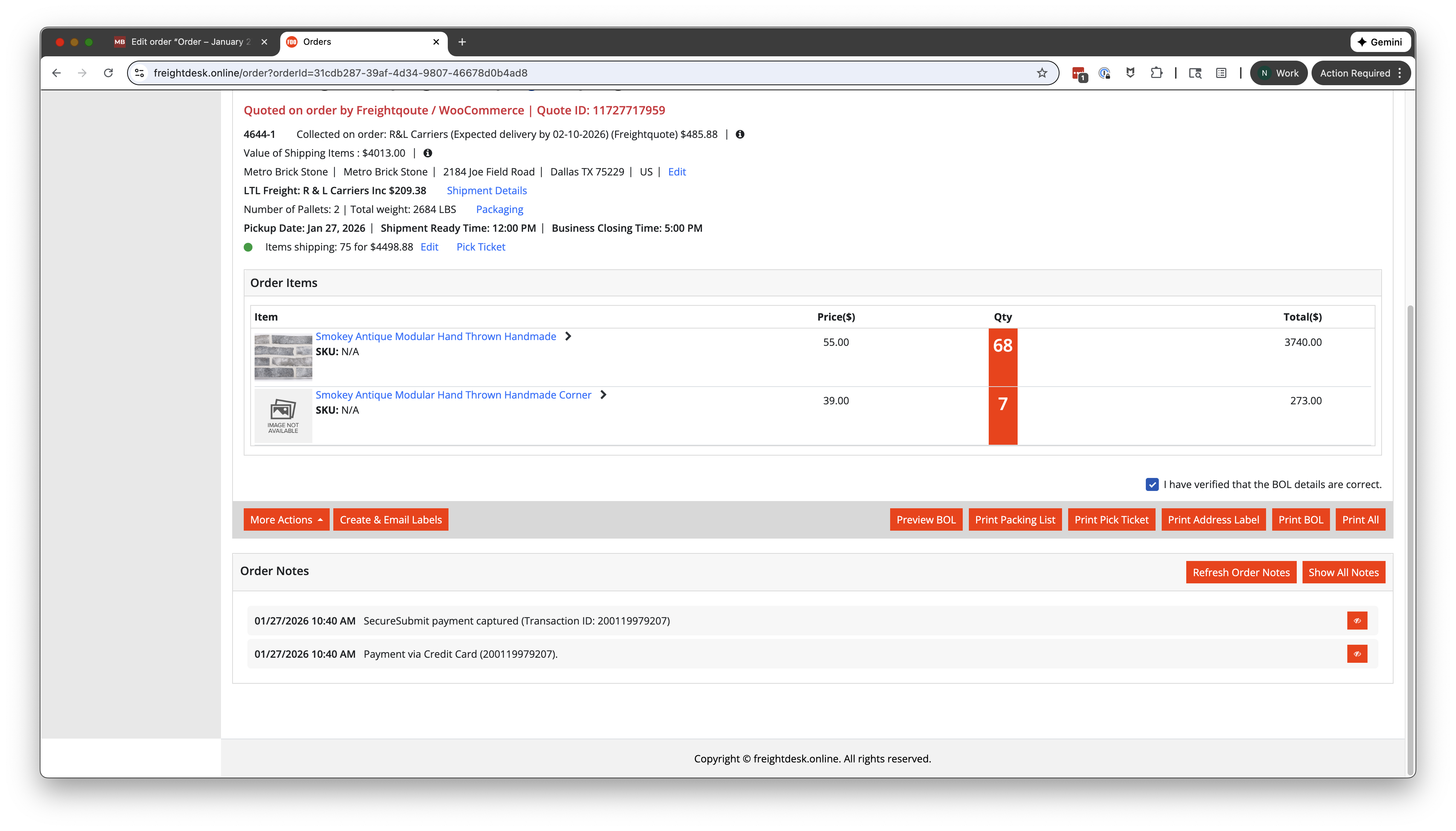
Confirm & Create Shipment
Critical step: checking the confirmation box and printing the BOL converts the order into a shipment. This finalizes the shipment record and enables printing BOL, packing list, pick ticket, and address label.
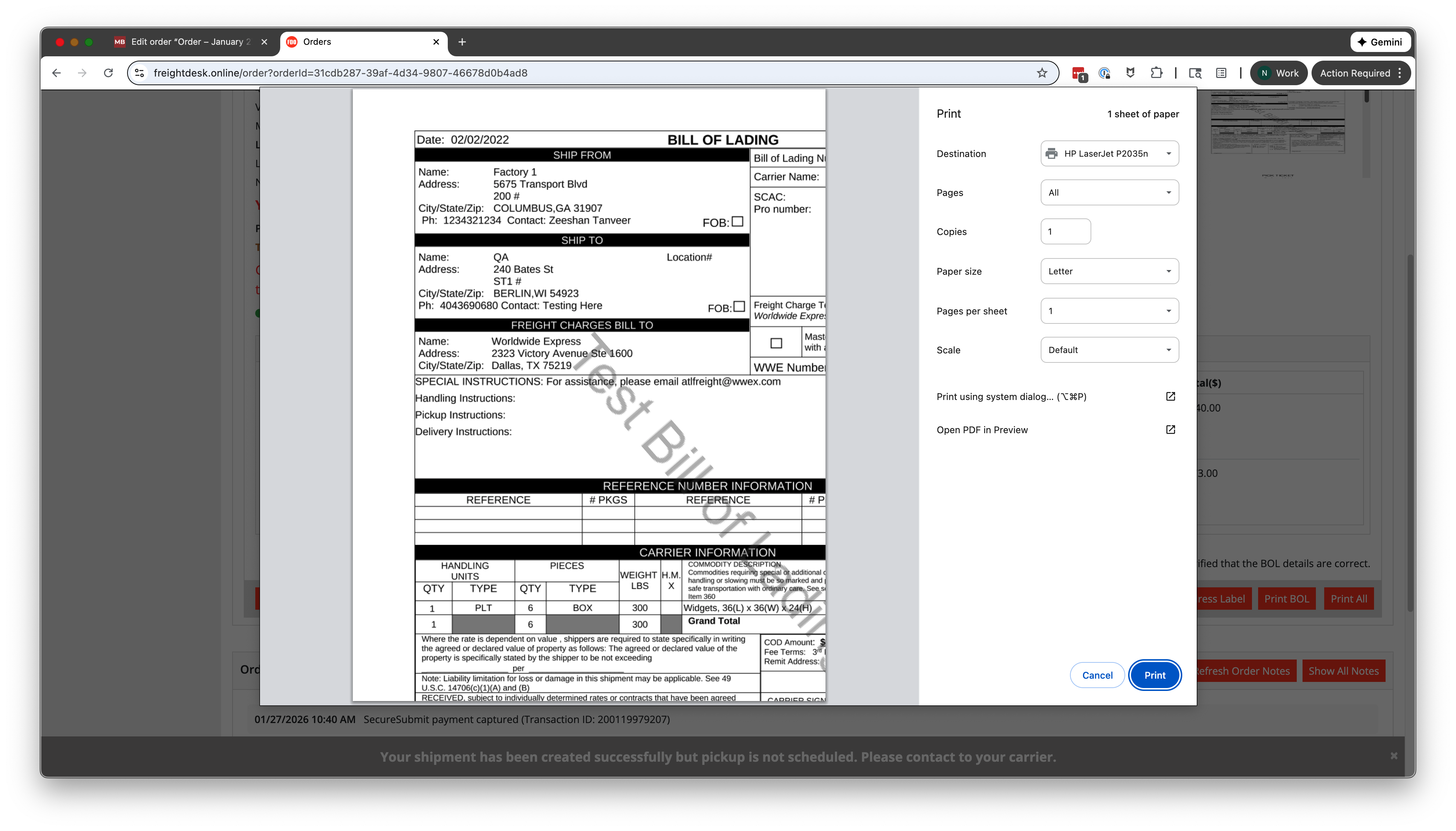
Print Bill of Lading
Final BOL document ready for printing. Contains shipper/consignee info, carrier details, freight charges, handling instructions, and signature areas. The order is now officially a shipment.
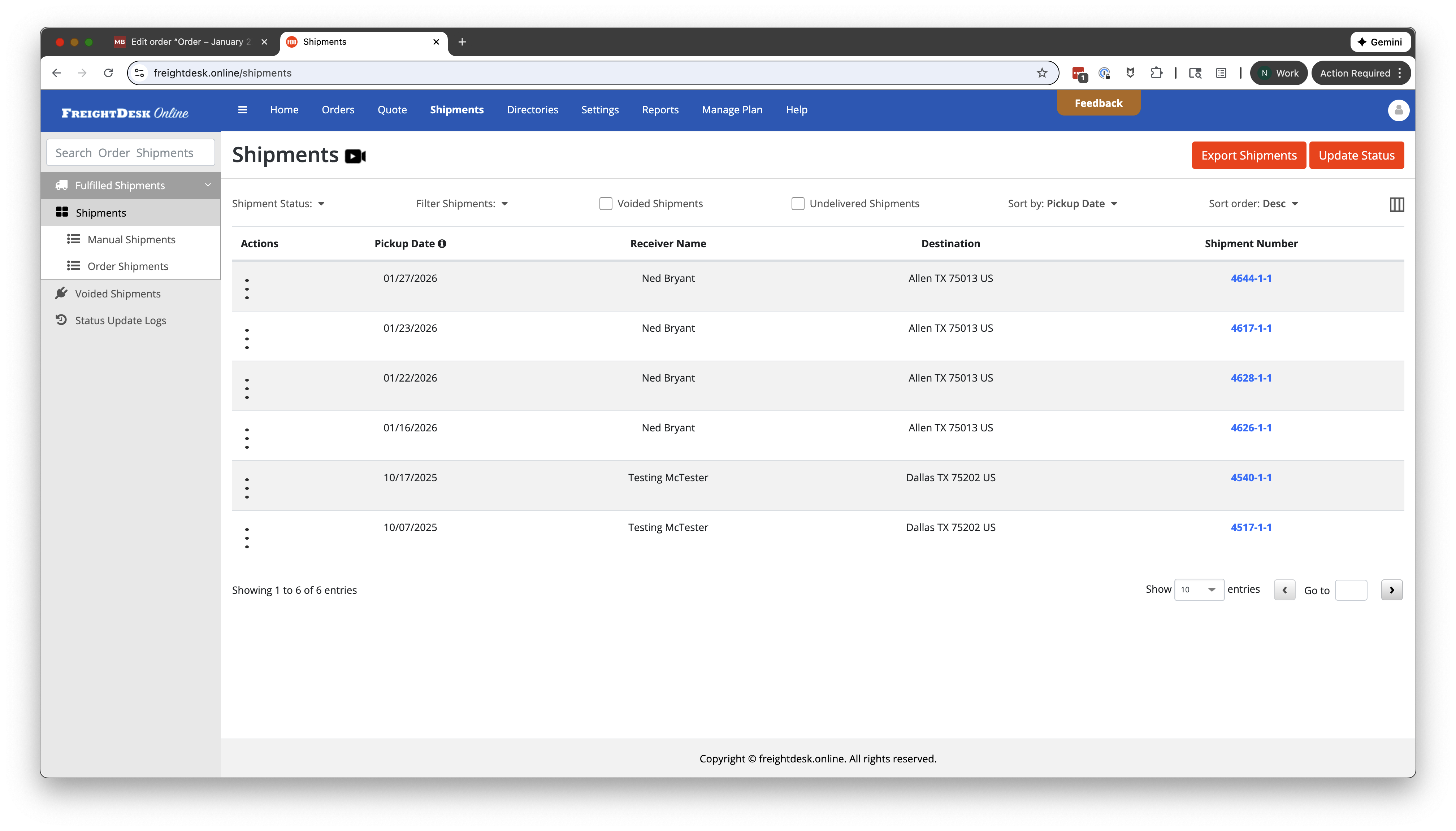
Shipments List
View all shipments with pickup dates, receiver names, destinations, and shipment numbers. Filter by status (Fulfilled, Voided) and sort by date.
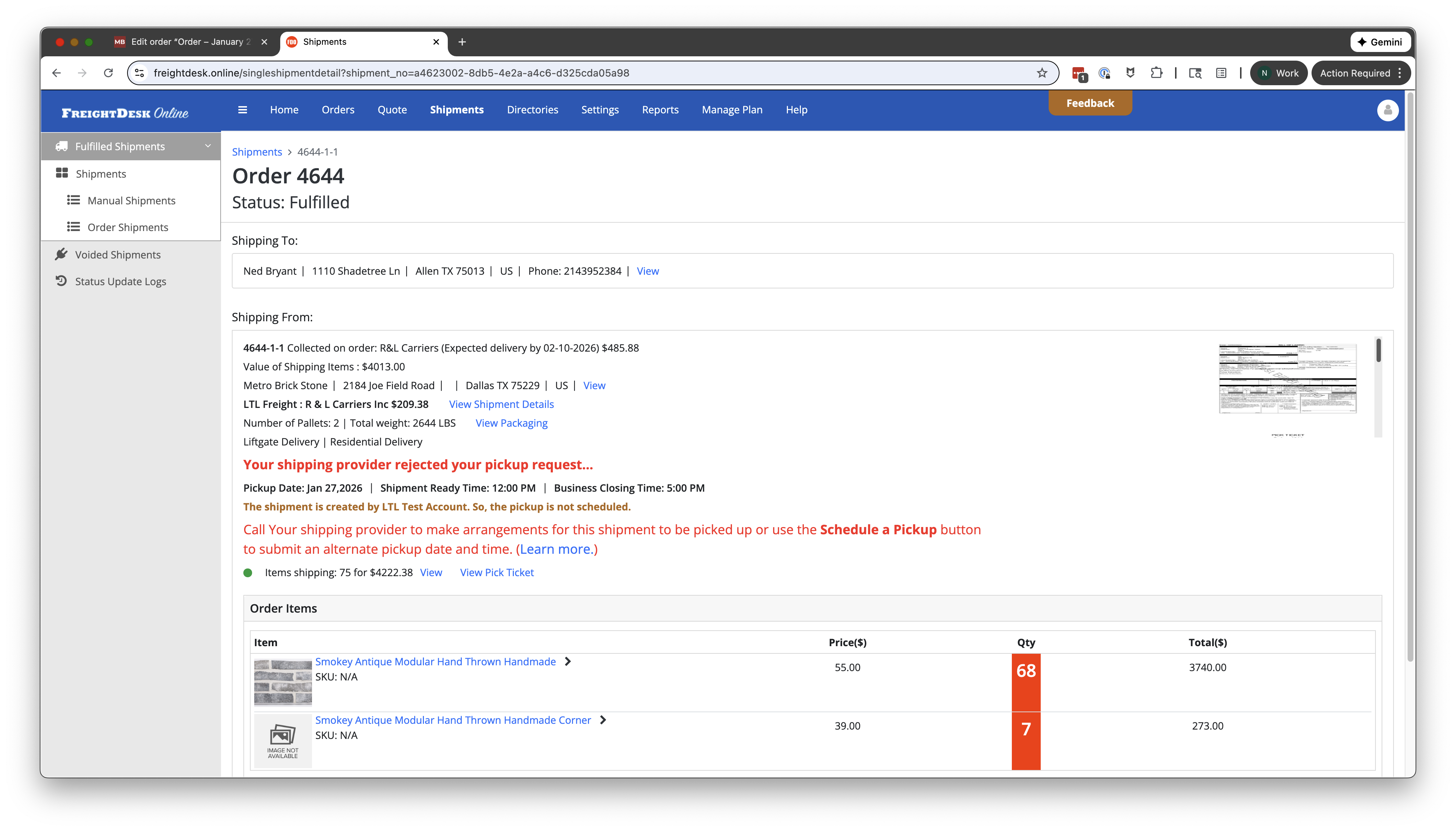
Fulfilled Shipment Detail
Completed shipment shows "Fulfilled" status. May show carrier pickup status messages. Contains link to schedule pickup if needed and view shipment details.
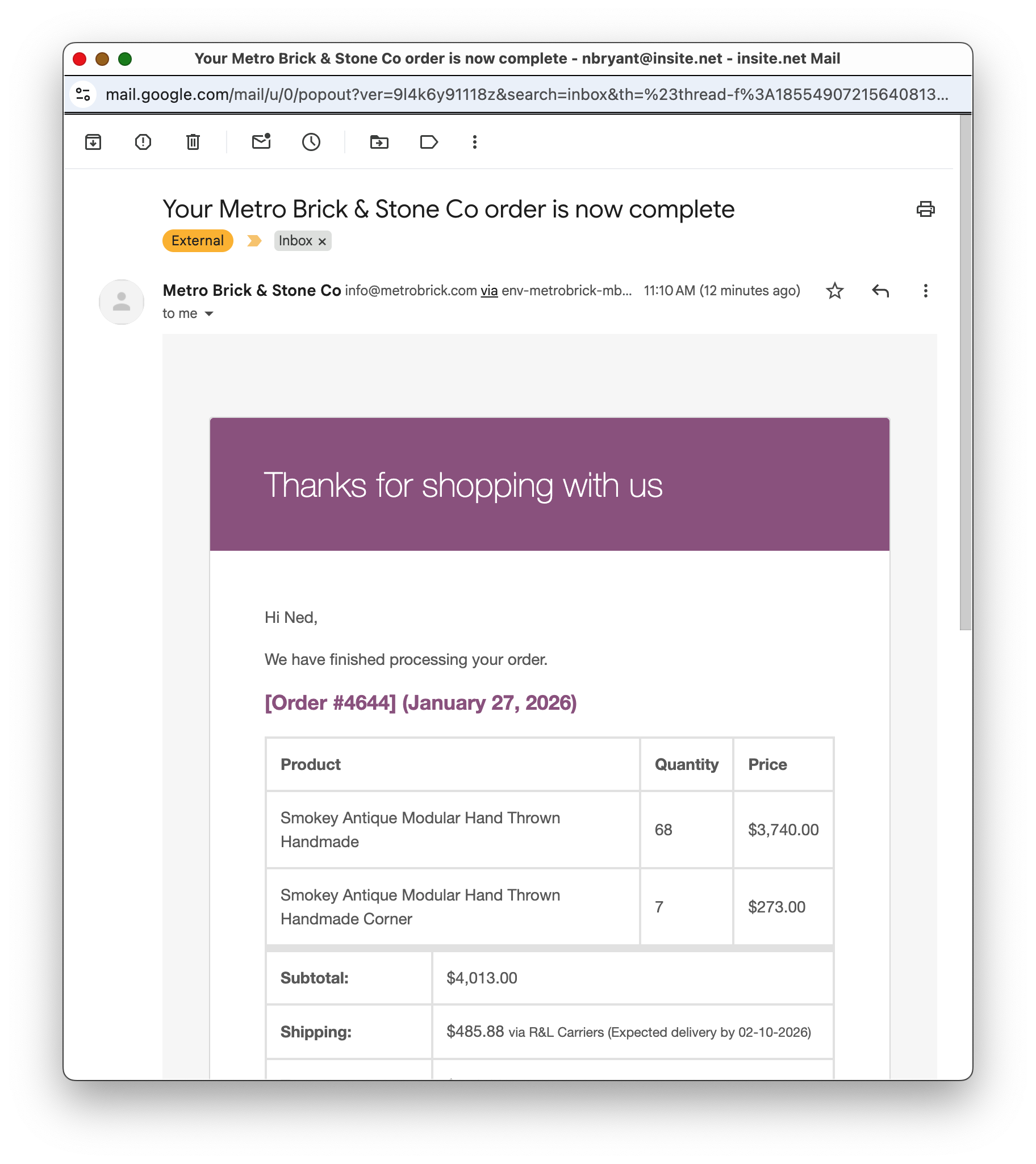
Order Complete Email
Customer receives final "order complete" email confirming their order has been processed and shipped. Includes order summary and shipping details.